Tiny Shield 1.18.1: investigate an upload before blocking an app
Follow an app's traffic into its bandwidth chart and down to a domain or IP. A source-based workflow for investigating sync uploads, with Free/PRO history and permission boundaries. Not a hands-on test.
An active connection is a starting point, not a verdict
You are on a phone hotspot, or a sync app keeps uploading. The useful first question is which app, which destination and how much data moved in a particular period. Tiny Shield 1.18.1 makes that investigation concrete: open an app's bandwidth chart, then drill into a domain or IP address.[2][3]
This guide is compiled from official release notes, documentation and licensing terms checked on 2026-10-19. We did not install or test the app on a Mac. It is proprietary software: a public GitHub release page does not make the firewall open source. Its EULA retains ownership and restricts redistribution.[7]
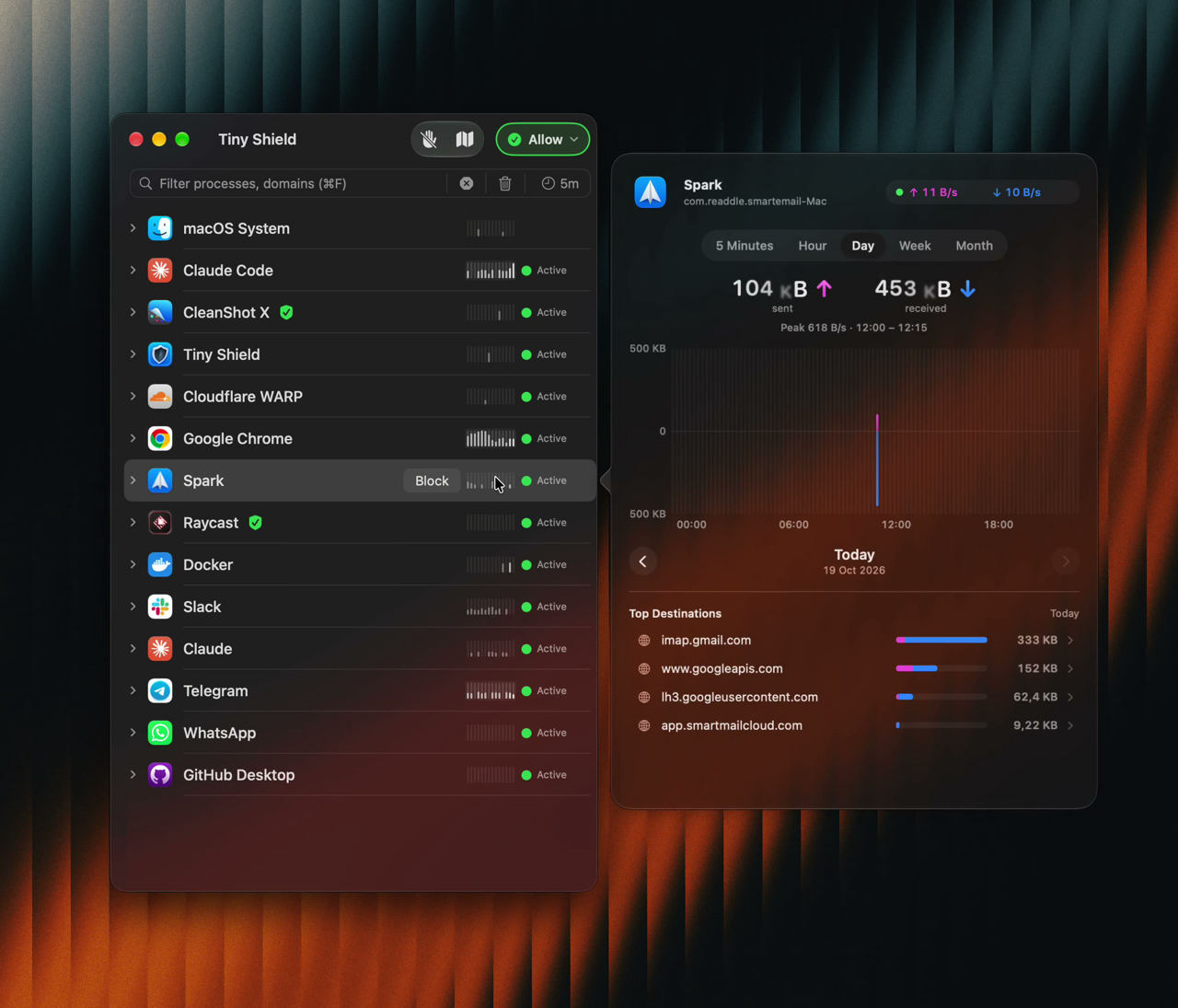
Official bandwidth demonstration. It explains the relationship between an app row and its detail panel; the sample figures are not our measurements, and no verifiable version number is visible.
Keep one investigation to one app and one period
Start with normal permission setup. The official workflow places the app in Applications, installs its Network Extension, enables Tiny Shield in System Settings and approves Filter Network Content. This is permission to filter network traffic, not just a chart widget. If you are unwilling to grant it, choose another approach. Do not bypass macOS security settings.[5][12]
1. Let the target app make a connection. Find the sync or download app in the connection list, using search if needed. Each app, domain and IP row has a sparkline for the last minute, which helps identify a busy row.[3][5]
2. Click the sparkline before clicking Block. The bandwidth panel shows live upload and download speeds, sent and received totals for the selected period, and peak usage with its time. Right-clicking and choosing Show Bandwidth… is another route. Read sent and received separately so a normal download does not become a suspected upload.[3]
3. Follow Top Destinations. Inspect the domains or IPs in the same panel, select a destination for its own chart, then use Back to return to the app. Record the app, period, direction and destination. That produces an observation you can revisit, rather than an automatic security conclusion.[3]
4. Change a rule only after understanding the connection. The app supports blocking an app or destination. A sync service may be uploading files you just changed, and a destination may serve several purposes. Check its role before blocking; disconnecting the whole app simply to make a number fall can interrupt useful work. Data volume alone cannot establish malicious behavior.[3][5]
The time window matters more than the curve
Sparklines cover the last minute; the detailed 5 Minutes view is free. Hour, Day, Week and Month history require PRO. The Day panel in the promotional image is not evidence that the free edition includes it. Before looking for yesterday or last week, check your license and the history actually retained.[3][4]
Clear All and Delete also remove bandwidth history for the affected rows. Save your own investigation notes before clearing data if you need a later comparison. The vendor says the monitor counts bytes without reading traffic content and stores history locally. That is not a promise that license activation or every other product service never contacts a server, nor an independent privacy audit.[3][7]
Choosing between this, Activity Monitor and LuLu
For overall sent/received totals or throughput, start with the Network tab in macOS Activity Monitor. Apple's guide documents total data, data per second and packet counts; you may not need another network extension.[11]
For free, open-source control of unknown outgoing connections, LuLu's official positioning fits that requirement. It also documents process and remote-endpoint rules and a bundled Network Monitor. The reason to consider Tiny Shield here is its documented app-to-bandwidth-to-destination workflow, not a claim that competing tools cannot do the job.[3][10]
Compatibility, cost and who should skip it
Tiny Shield supports Apple silicon and Intel Macs on macOS 15 or later. The free edition includes live bandwidth and the short window, but only one Block List rule and one Allow List rule. Require Approval, Block All and longer bandwidth history require PRO.[4][5]
Direct Standard licensing covers one Mac and Combo covers two, each with two years of updates. Lifetime covers two Macs with lifetime updates. Standard and Combo continue to work on covered versions after updates expire. Promotional dollar prices are deliberately not fixed here: check current vendor pricing before buying, and verify other distribution channels separately.[4][6]
Consider it when you need to connect an app's upload volume to its destinations. Skip it if you only want overall network speed, require open source, will not approve a Network Extension, or expect a traffic chart to be a malware verdict. Investigate one concrete problem with the free short window before deciding whether longer history is worth paying for.[3][4][11]
Find the app and its official download
Discover Tiny Shield on OpenNavo. Check the official product page and current releases before downloading. This guide does not recommend bypassing permissions or security checks.
Sources and verification date
Checked on 2026-10-19. Numbers below identify the sources cited above. The official illustration explains the interface only.
Sources:
[2] https://github.com/ProxymanApp/Tiny-Shield/releases/tag/1.18.1 [3] https://tinyshield.proxyman.com/docs/features/bandwidth-monitor [4] https://tinyshield.proxyman.com/pricing [5] https://tinyshield.proxyman.com/docs [6] https://tinyshield.proxyman.com/docs/license [7] https://tinyshield.proxyman.com/eula [10] https://objective-see.org/products/lulu.html [11] https://support.apple.com/guide/activity-monitor/view-network-activity-actmntr1006/mac [12] https://tinyshield.proxyman.com/docs/features/network-extension