Clop guide: compress images, screen recordings, and PDFs on Mac
Compress screenshots, screen recordings, and PDFs locally with Clop. Start with a copy, then explore clipboard optimization, size limits, free allowances, and privacy considerations.
Clop compresses images, screen recordings, and PDFs locally on your Mac, without repeatedly opening a website to upload files. Start with a copy and check the result before enabling clipboard or folder automation. This guide is based on official documentation, not hands-on testing, and makes no promise of a fixed compression ratio.
Install it, then try a copy
The current website requires macOS 14 Sonoma or later. Find the official download through the Clop app page and download the DMG. The official site also provides the Homebrew command brew install --cask clop.[1]
- Copy a screenshot or screen recording into a test folder, keeping the original.
- Drag the copy into Clop’s drop zone; press Option once to bring the zone near the pointer.
- Wait for processing, open the result, and check text, colors, and playback.
- Once quality and save location are suitable, enable clipboard optimization or watch a dedicated folder.
Holding Command while dropping uses more aggressive optimization. According to the documentation, dropped images and videos are optimized in place; originals are kept in a backup folder accessible from the app menu. This is not a substitute for an independent backup. Do not clear backups before checking the results.[1]
Images: clipboard, dimensions, and format
With automatic clipboard optimization enabled and Clop running, copying an image triggers processing; paste it once processing finishes. Use Ctrl-Shift-C to process the current clipboard on demand.[1]
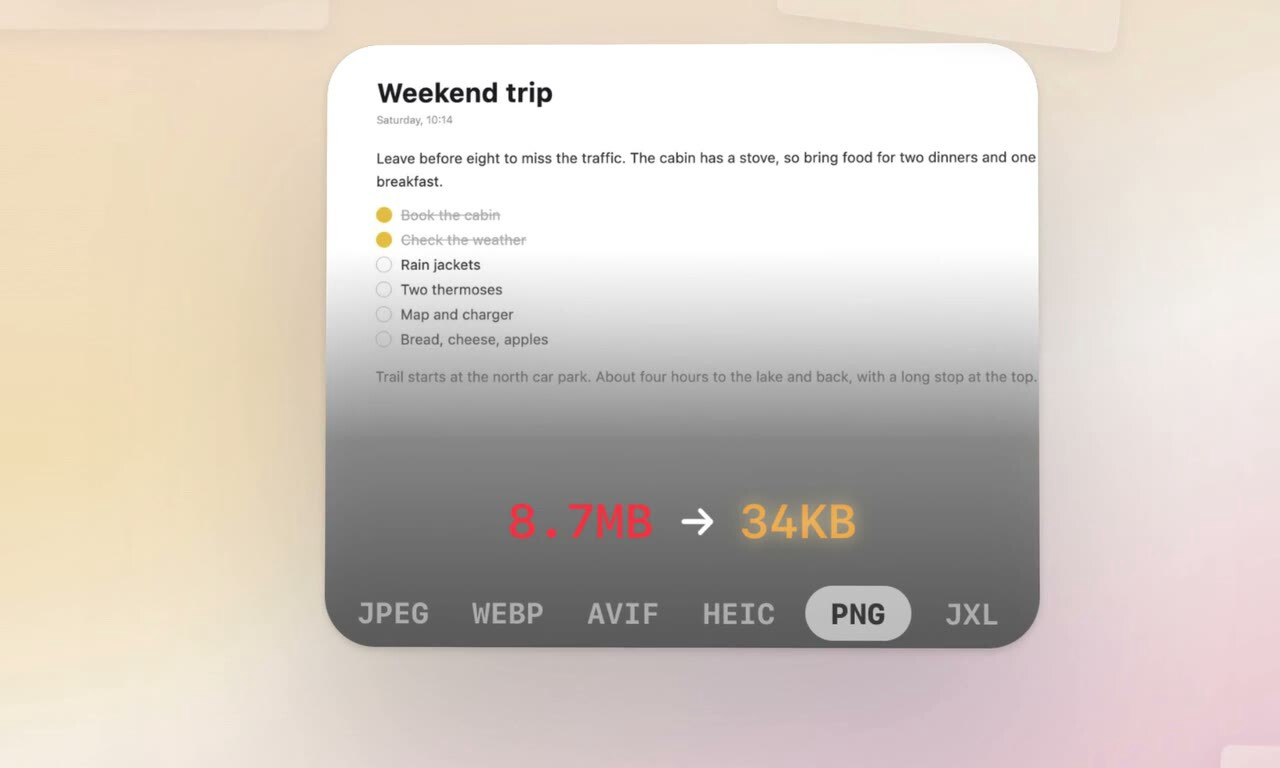
If an image is still too large, crop irrelevant areas or reduce unnecessary resolution first. The floating result offers resizing, cropping, and a format bar. Before converting to WebP, AVIF, JPEG XL, or another format, check the recipient’s support. Converted files go into the original’s folder, and another conversion may replace the previous result; save separate copies when you need multiple versions.
Zoom in to check small text in screenshots, edges and transparency in transparent images, and colors and required metadata in photos.
Official demonstration poster from the Clop website, not a screenshot of our own test. File sizes shown are promotional examples, not results verified in this article.
Screen recordings and PDFs: work toward attachment limits
Drop a recording for optimization or use folder watching to process it automatically. Video tools also include cropping, playback-speed changes, audio removal, and format conversion. Preserve readable interface text and necessary audio before trying stronger compression.[1]
Fit under size supports images, videos, PDFs, and audio. The official description says it starts from the original, tries stronger compression, and reduces dimensions if needed. This does not guarantee that any file can meet any limit at its original quality. Use the attachment limit shown by the platform you actually use.
For PDFs, start with scanned or heavily illustrated documents, then check small text, fine lines, and images on every page. Keep originals of signed documents, forms, or files subject to archival requirements, and confirm your workflow’s requirements. This guide has not tested those special document types.
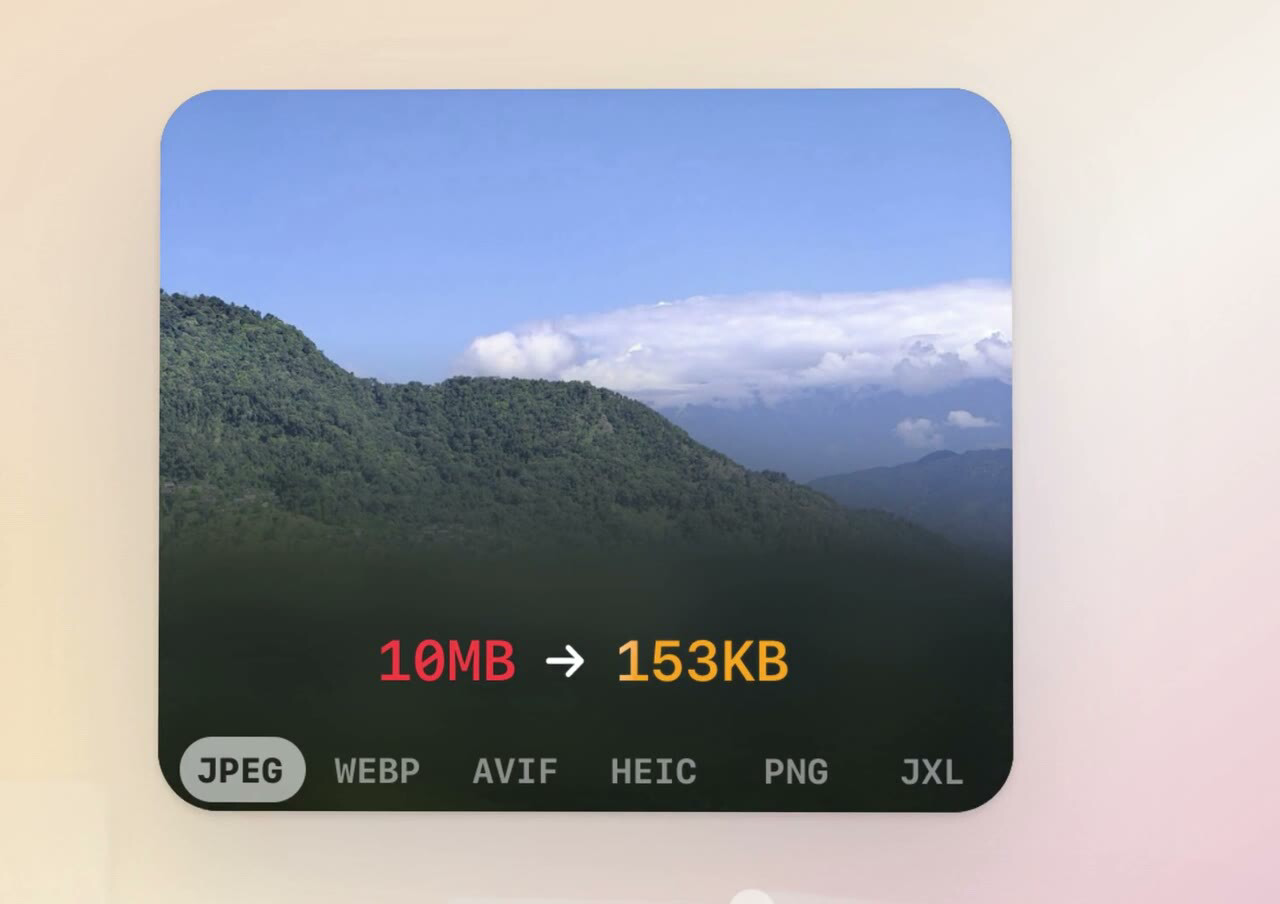
Official demonstration poster from the Clop website, not a screenshot of our own test. File sizes shown are promotional examples, not results verified in this article.
Choosing free features or Pro
The official pricing and allowances checked for this guide are below. Purchase conditions and the amount due are determined at checkout.[1]
| Item | Official description |
|---|---|
| Pro trial | 14 days; free features remain available afterward |
| Pro license | €15, lifetime license |
| Free allowance | Several file-optimization types, conversion, the drop zone, on-demand automation, and CLI are listed as 5 per session |
| One drop | Up to 5 files per drop in the free version; separate from the session allowance |
Automatic clipboard image optimization, image resizing and cropping, pipelines, the format bar, and Fit under size are listed as free features, subject to file-type and allowance considerations. Pro offers larger batch workflows and an MCP server. Try the free features for occasional screenshots; assess Pro if you regularly process batches. “Per session” does not mean “per day.”
Privacy boundaries of local processing
Media optimization happens on the device, without uploading files for cloud compression. However, dropping a URL downloads a file, enabling Dropshare uploads to your configured service, and license validation needs a network connection.[1]
The privacy policy says Sentry collects crash information, which may include device information, IP addresses, and a contact email explicitly consented to when buying Pro. Paddle handles checkout and licensing.[2]
Before processing sensitive material, check clipboard and watched-folder scope, upload integrations, and output and backup locations. Controlled documents still need to comply with your organization’s software and data-handling rules.
Common questions
Is Clop lossless?
Not in every case. The website says JPEG XL and WebP can use lossless methods, but stronger compression, resizing, or format changes may alter the image and file contents, depending on the format and settings.
Why did the file barely shrink?
Savings depend on the source and settings; already well-compressed files may have little room left. Decide whether the goal is format compatibility, dimensions, or an attachment limit rather than repeatedly sacrificing quality for a percentage.
Will it overwrite originals?
Images and videos can be optimized in place, with original backups and restore support. Work on copies first and keep independent backups of important material.
Who is it for?
Mac users who frequently handle screenshots, recordings, blog images, and attachments. If you need a Windows/Linux app, detailed professional video-encoding control, or a guarantee that all files remain entirely unchanged, convenience alone is not enough to choose it. Test “copy → optimize → check → share” before expanding automation.
References
[1] Clop official features, usage, requirements, and Free vs Pro comparison