Thaw 2.1: a Mac menu bar that follows devices and Spaces
Start with one hidden icon and one condition. A practical guide to Thaw 2.1's external-drive triggers, groups, Space profiles and permission boundaries, with a clear split between macOS 26 stable and macOS 27 prereleases.
Some menu bar icons matter only while a device is connected. An external drive's helper app is a good example: you do not need to watch it all day, but want its controls within reach when the drive arrives. Thaw 2.1 lets conditions determine the visibility of existing menu bar items instead of making you rearrange them every day.
This guide draws on the official 2.1.0 release and version-tagged documentation, checked on 2026-10-19. We have not installed or tested it. The aim is a setup you can begin on a small scale, not a measured time-saving claim or an assumption that every homepage feature is in the stable build.
Begin with one icon and one rule
The starting point is a Mac running macOS 26 and a drive helper that already has a menu bar item. The intended result is one fewer permanent icon, with the relevant control available when the device connects. Thaw manages existing items; it does not create a menu bar icon for an app that has none.
- Check About This Mac first. Read Thaw's OpenNavo page, or get the stable build from the official 2.1.0 release.
- Open Thaw and grant Accessibility when macOS requests it. Leave advanced trigger sources off initially.
- Hold Command and drag an occasional item into Hidden. Alternatively, right-click Thaw's icon, open Settings and drag the item from Visible to Hidden in Layout. Click Thaw's icon to confirm you can retrieve it.
- Choose a reveal gesture and automatic rehide strategy before adding a rule. The 2.1.0 notes explicitly support an external-drive condition. Enable only the Trigger Sources you need, then associate the device condition with an existing item in the trigger editor. Sources other than battery and power ship disabled.
- Connect and disconnect the device, check the resulting visibility, and confirm manual reveal still works. These are suggested local acceptance steps, not tests we have performed.
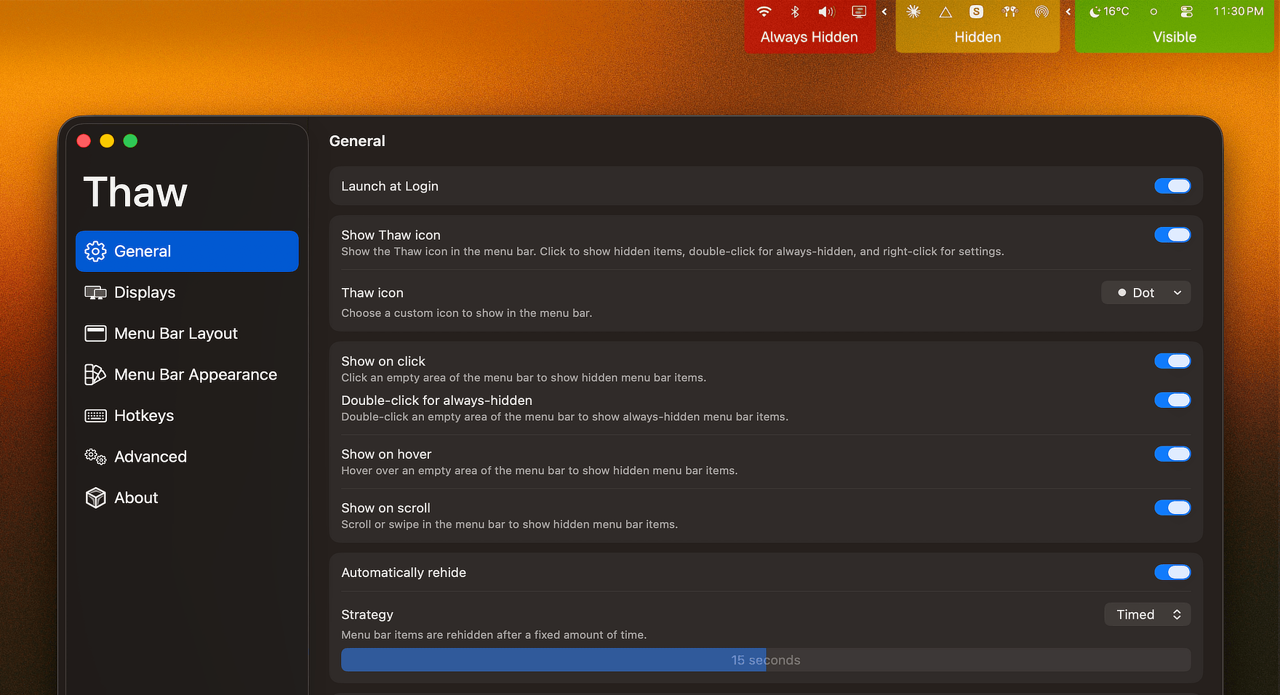
The image comes from the official README and its pixels have been reviewed. It explains the three sections and reveal/rehide settings, but identifies no application version. It is not a screenshot of the 2.1 trigger editor.
What groups and Space profiles solve
When related controls should move together, Groups move and hide them as one unit, including across sections. Version 2.1 also lets a profile follow a Space, with a menu bar appearance for each desktop Space. Get the manual layout working first, then add profile switching; changing the whole layout while diagnosing one rule makes troubleshooting harder.
Zen Mode closes every section with one hotkey. Hovering, automatic reveals and blinking icons cannot open them until you turn it off. This reduces visual distraction; it is not a screen-sharing privacy guarantee and does not disable notifications or conceal sensitive content inside app windows.
Screen Recording is optional; Accessibility is not
The useful permission change in 2.1 is that the Thaw Bar, search and Layout can draw app icons instead of live previews when you decline Screen Recording. You lose the corresponding capture-based effects; the official permissions page also lists tooltips and wallpaper tint as unavailable. Accessibility remains necessary to move and hide items. Optional Screen Recording does not mean permission-free operation.
Labels differ across sources: the tagged README still says Developer settings, while the 2.1.0 release notes rename that area Trigger Sources. This guide uses the release-note name. Do not expect every new control to appear in a historical screenshot.
When a simpler approach is enough
If you only want an arrow that collapses icons, the basic workflow in Hidden Bar's official README is a useful comparison: Command-drag the divider position, then click the arrow to hide items. This is not a claim that Hidden Bar has no other features.
Choose Thaw 2.1 because you need conditional visibility, grouped movement or Space profiles, not because a longer feature list must be better. If your few everyday icons already fit, you may not need to change anything.
Versions, price and maintenance costs
Thaw is free under GPL-3.0, with no account or subscription. Homebrew lists Apple silicon and Intel support, but do not treat the package manager's minimum of macOS 26 as a complete compatibility promise: the developer explicitly limits stable 2.1.0 to macOS 26. macOS 27 has a separate Thaw 3 prerelease line without guaranteed feature parity. For macOS 14 and 15 the official docs point to older Thaw 1 builds, not the new features in this guide.
Version 2.1.0 was released on 2026-10-14 UTC. It is a substantial feature update, not a new launch. OpenNavo's current overview retains 2.0.x descriptions while its version section shows 2.1.0; the new capabilities here are grounded in the matching official release, without changing the app listing.
Spacing changes can restart menu bar apps. If you do not want automatic restarts, the release notes recommend Settings → Displays → When applying spacing → Wait until next restart. Multiple displays, unusual status items and OS updates still need local verification. Consult the official frequent-issues guide before clearing settings when something goes wrong.
Next step and sources
Hide one item, confirm reveal and rehide, then add one device rule. Expand to groups and Space profiles only if that helps your routine. Discover Thaw on OpenNavo, or download from the official 2.1.0 page.
Checked on 2026-10-19. Primary references: 2.1.0 release, tagged README, getting started, permissions, version channels, license, Homebrew entry and Hidden Bar's official README.