SwiftVM: a test machine you can start over with, right from your Mac’s menu bar
SwiftVM brings macOS and Linux test machines to your Mac’s menu bar, with snapshots, cloning, a CLI and automation. This guide covers v1.3.0, and requirements for Apple silicon, macOS 27 and guest permissions.
You want to try a Linux installation script without leaving your everyday development environment in a mess, or set up a macOS test machine that you can roll back after something goes wrong. Virtual machines can meet those needs, but creating accounts, connecting a terminal, transferring files and cleaning up after each experiment also take time.
SwiftVM puts those operations behind a menu-bar entry. Click its icon to view, start and stop virtual machines; when you need a desktop, open that machine’s own window. Built with Swift and Apple’s Virtualization framework, it is open source under the Apache-2.0 license and currently supports macOS and Linux virtual machines.[1][2]
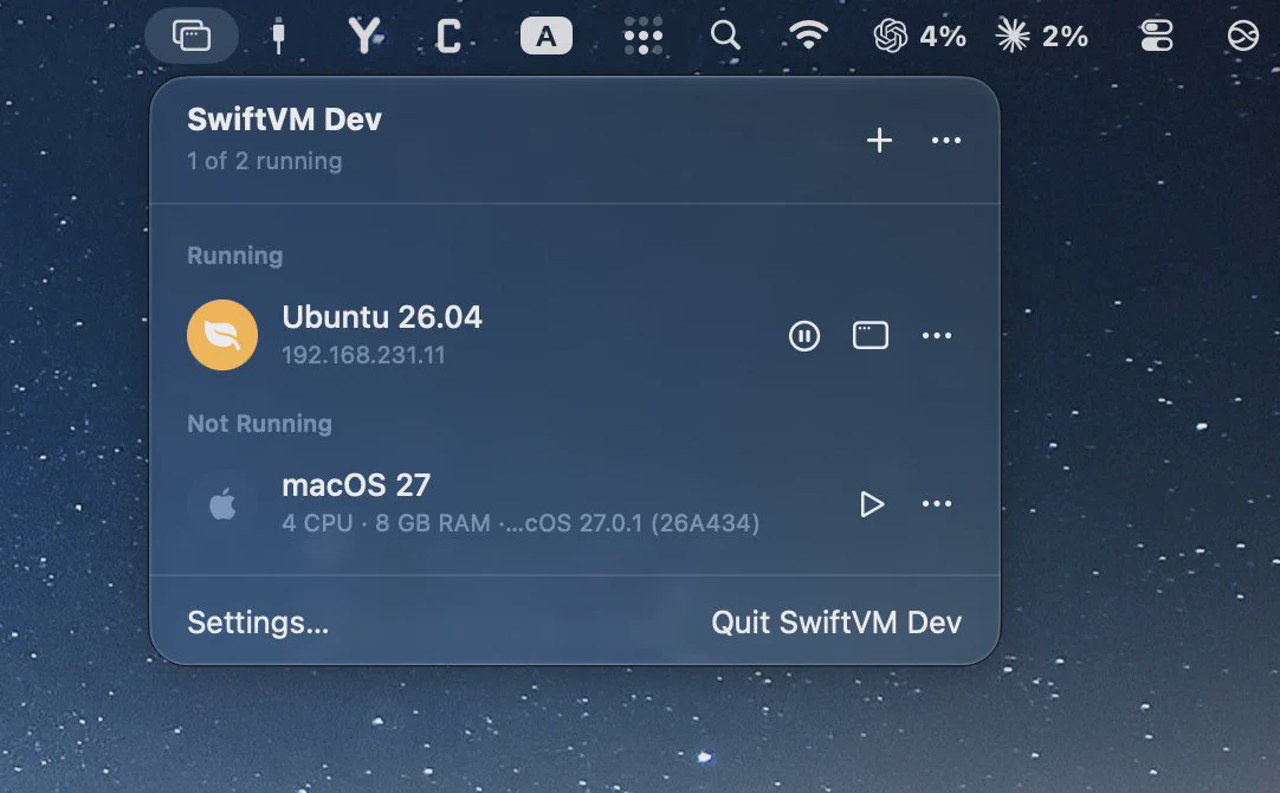
SwiftVM Dev’s menu-bar interface, shared by the developer on October 11, 2026: Ubuntu is running and macOS is stopped. No app version is shown. Source: developer Saeed Vaziry.
Before installing, check one requirement: v1.3.0, the version covered here, requires an Apple silicon Mac running macOS 27 or later. Intel Macs are not supported, and Windows virtual machines remain planned.[1][5]
Start with a Linux machine you can connect to
According to the official getting-started guide, after you choose a Linux distribution and create a virtual machine, SwiftVM downloads the image, configures the account and SSH keys, then starts the system. It creates a server environment by default; if you need a graphical desktop, you can add the appropriate installation script when creating the machine.[2]
For testing deployment workflows, that order is practical: first get a machine you can connect to through a terminal and get the script working, then add a desktop if needed, rather than installing an entire desktop environment from the outset.
SwiftVM’s Linux virtual machines use ARM64, however. If your project depends on architecture-specific binary components, check compatibility in advance. Do not assume it is identical to a typical x86 server environment.[5]
macOS virtual machines also support automated installation and account setup. There is another easily missed condition: unattended setup and guest tools require macOS 27 or later inside the virtual machine as well. It is not enough for only the Mac running SwiftVM to meet that requirement.[1][5]
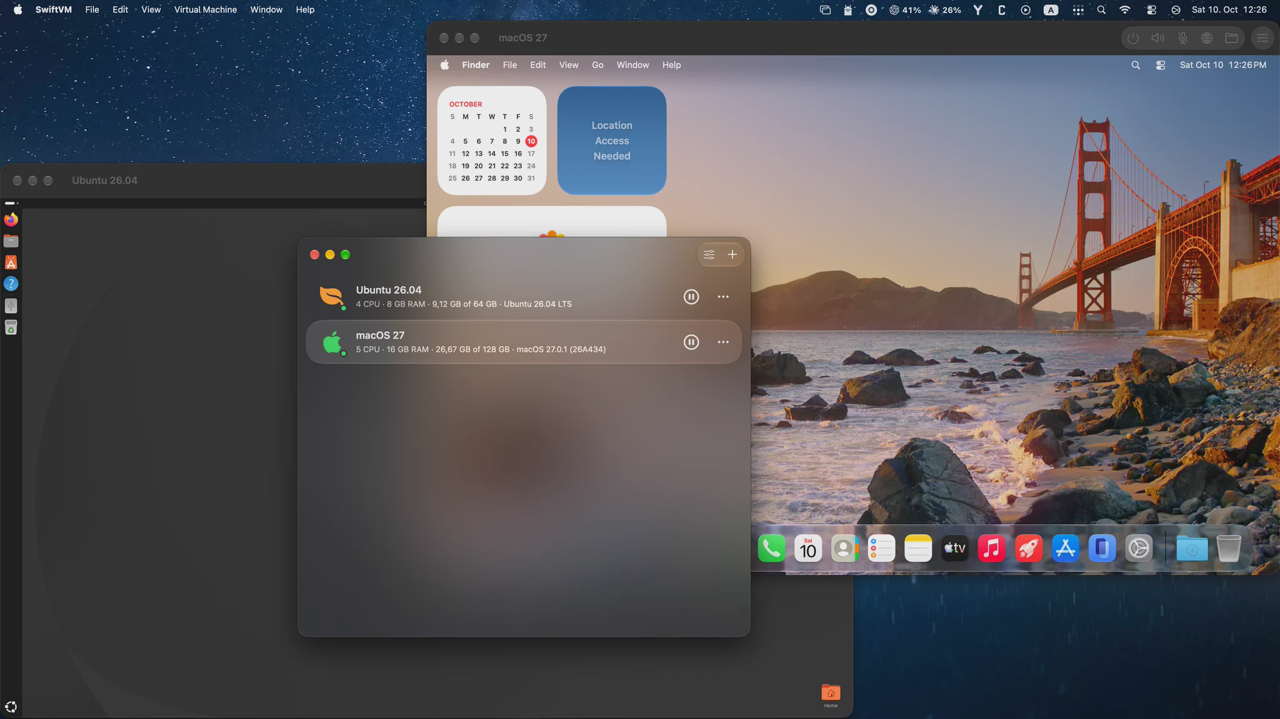
An early SwiftVM interface shared by the developer on October 10, 2026, with Ubuntu and macOS desktops open together. This development view predates the switch to a menu-bar app; it is not the v1.3.0 interface. Source: developer Saeed Vaziry.
A test environment earns its keep when you can reuse it
Before upgrading dependencies or changing system configuration, you can save a snapshot and return to the previous state if something goes wrong. When you need another similar environment, you can clone a shut-down virtual machine. If you are putting work aside, you can suspend the machine, save its state to disk and resume it later.[3]
These features address different testing needs: snapshots preserve an experiment’s starting point, cloning prepares another environment, and suspension makes it easier to pick up where you left off. If you regularly check installation scripts, dependency updates and system configuration, not having to reinstall the OS each time is worth considering.
SwiftVM also offers shared folders and port forwarding, letting a virtual machine access project files or letting your Mac access services running inside it.[3]
Sharing also means paying attention to boundaries. If you expose your working directory to a virtual machine, scripts running there may be able to access those files. When testing unfamiliar software, share only the directories you need, rather than assuming host files cannot be affected just because “it’s in a virtual machine.”
Beyond the menu bar: command-line tools and automation
SwiftVM includes the swiftvm command-line tool with the app. It controls the running application, so SwiftVM must remain open while you use the CLI; the tool cannot work independently of the app.[3]
Through its guest tools, SwiftVM can also execute commands, copy files, capture screen images and interact with the interface inside a virtual machine. The official documentation names scripts and AI agents as intended users of these interfaces.[4]
That gives it a concrete use: preparing a separate system environment for automation tasks. Copy files directly when handling files, execute commands when a terminal is needed, and use the mouse and keyboard interfaces only when interacting with the desktop is necessary.
There are prerequisites: the virtual machine must be running, guest tools must be available and automation must not be disabled. Older tools may also need updating.[4]
To interact with the desktop in a macOS virtual machine, you must first log in and manually grant swiftvm-agent Screen Recording and Accessibility permissions. Executing commands and copying files do not require those two permissions.[4]
Support for AI-agent interaction therefore does not mean every task can immediately run unattended after installation. Initial setup, permissions and the scope of sharing still require decisions from the user.
Start from the menu bar
It is normal for no main window to appear on first launch. SwiftVM’s management entry is in the menu bar, and virtual-machine desktops open separately. You can start by creating a Linux test machine, confirm that the terminal connection works, then configure a desktop, shared folders and automation as needed.
If you have a supported Apple silicon Mac and often need a macOS or Linux environment that you can roll back, clone and hand over to scripts, SwiftVM is worth trying. If your goal is to run Windows, or you still use an Intel Mac or a system older than macOS 27, the current version is not suitable.
References
[1] Project overview [2] Getting started and installation [3] Command line and virtual-machine management [4] Automation and permissions [5] Platform and guest-system limitations