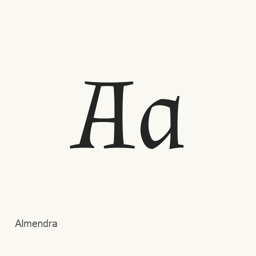
Almendra
Ana Sanfelippo · A Google Fonts typeface installed as four styles: regular, italic, bold, and bold italic.
- Installationen (30 Tage)
- 5
- Installationen (1 Jahr)
- 53
- Letzte 365 Tage
- Neueste Version
- latest
- Downloadgröße
- —
- arm64 / x86_64 · git
- Update-Rhythmus
- Unregelmäßig
- 0 Versionen in 30 Tagen
Almendra ist eine Schriftart, die Sie auf einem Mac installieren können. Der Entwickler ist Ana Sanfelippo.
Eckdaten
- Schriftdateien
- 4 · TTF
- Installationsort
~/Library/Fonts- Entwickler
- Ana Sanfelippo
- Installationsbefehl
brew install --cask font-almendra- Homebrew
- Installierbar; Updates über Homebrew
- Auch bekannt als
- font-almendra
Beschreibung
Almendra is a typeface available through Google Fonts. The Homebrew cask installs four TrueType font files, covering regular, italic, bold, and bold italic styles. It installs fonts rather than a standalone application.
The installed files are Almendra-Regular., Almendra-Italic., Almendra-Bold., and Almendra-BoldItalic.. After installation, select the actual Almendra font in a compatible application that offers font selection, such as a document or design app. The cask's font files establish which styles are included; they do not establish full Unicode coverage or ligature support.
Install with Homebrew Cask:
brew install --cask font-almendra
Official source: Almendra on Google Fonts
Download size: Unknown.
Version changes: Unknown.
Systemvoraussetzungen
| macOS | App-Version | Chips | Download | Quelle |
|---|---|---|---|---|
| Build für macOS 27, 26, 15, 14, 13, 12, 11 | latest | Intel | github.com/google/fonts.git | HomebrewGeprüft am |
| Build für macOS 27, 26, 15, 14, 13, 12, 11 | latest | Apple silicon | github.com/google/fonts.git | HomebrewGeprüft am |
So installieren Sie Almendra auf dem Mac
- Führen Sie im Terminal Folgendes aus:
brew install --cask font-almendra - Homebrew installiert die Schrift in ~/Library/Fonts, wo die App „Schriftsammlung“ sie verwenden kann.
Ohne Homebrew installieren
Laden Sie dieselbe Datei herunter, die Homebrew verwendet: github.com/google/fonts.git
Almendra deinstallieren und Daten optional bereinigen
brew uninstall --cask font-almendraEine normale Deinstallation entfernt die App, behält aber ihre Einstellungen und Caches.
Neu in latest
Neu Aus Homebrew-Commits
Für diese Version gibt es keine eigenen Versionshinweise.
Installationsdetails
- Tap
- homebrew/cask
- Download-URL
- https://github.com/google/fonts.git
- Homebrew-Definition
- github.com/homebrew/homebrew-cask/blob/HEAD/Casks/font/font-a/font-almendra.rb
- formulae.brew.sh
- formulae.brew.sh/cask/font-almendra
- Quellcode
- github.com/google/fonts
Inhalte bei Installation und Deinstallation
Installation
fontQuelldatei: Almendra-Bold.
ttf Angegebenes Ziel: /
$HOME/ Library/ Fonts/ Almendra-Bold. ttf Vollständige Deklaration ansehen
{ "font": [ "Almendra-Bold.
ttf" ], "target": "/$HOME/ }Library/ Fonts/ Almendra-Bold. ttf" Installation
fontQuelldatei: Almendra-BoldItalic.
ttf Angegebenes Ziel: /
$HOME/ Library/ Fonts/ Almendra-BoldItalic. ttf Vollständige Deklaration ansehen
{ "font": [ "Almendra-BoldItalic.
ttf" ], "target": "/$HOME/ }Library/ Fonts/ Almendra-BoldItalic. ttf" Installation
fontQuelldatei: Almendra-Italic.
ttf Angegebenes Ziel: /
$HOME/ Library/ Fonts/ Almendra-Italic. ttf Vollständige Deklaration ansehen
{ "font": [ "Almendra-Italic.
ttf" ], "target": "/$HOME/ }Library/ Fonts/ Almendra-Italic. ttf" Installation
fontQuelldatei: Almendra-Regular.
ttf Angegebenes Ziel: /
$HOME/ Library/ Fonts/ Almendra-Regular. ttf Vollständige Deklaration ansehen
{ "font": [ "Almendra-Regular.
ttf" ], "target": "/$HOME/ }Library/ Fonts/ Almendra-Regular. ttf"
Häufige Fragen zu Almendra
Wie deinstalliere ich Almendra vollständig auf dem Mac?
Führen Sie brew uninstall --cask font-almendra aus.
Quellen
Jede Angabe auf dieser Seite nennt ihre Quelle und ihr Prüfdatum. Abgelaufene Angaben werden nur mit „Stand“ und Datum angezeigt und nicht mehr als aktuell dargestellt.
- Homebrew-Definition: github.com/homebrew/homebrew-cask/blob/HEAD/Casks/font/font-a/font-almendra.rb · Geprüft am
- formulae.brew.sh: formulae.brew.sh/cask/font-almendra